How to Inactivate Staff
As an Organization Admin, you will have the ability to inactivate staff members when needed. When you (deactivate/inactivate) as staff member it means that this staff person no longer has access to the QUALO system but all information that they have entered into the system is retained.
Optional: If the selected staff member has any active clients, before you complete the final action you will be prompted to transfer those clients to new clinicians(s). Alternatively, you can transfer ahead of inactivating the staff member.
Getting Started
- From the home screen, you click on the system drop down on the upper right corner of your screen and select User Management
Screenshot shows how to access the User Management list
2. Next, make sure you are on the Staff List tab shown on the left hand side of the screen.
Search for Staff you Wish to Inactivate
- Find the staff that you wish to inactivate. You may also use the search option to find the staff member by entering their first and last name into the search bar.
Screenshot show how to search for staff that you wish to inactive
Inactivate Staff
- Click on the
button and choose to
Mark Inactive
Screenshot of how to begin the Inactivate process.
2. If the staff member doesn't have any active clients on their workload, a pop up will appear where you will have to type the last name of the staff member. This will confirm the inactivate process. 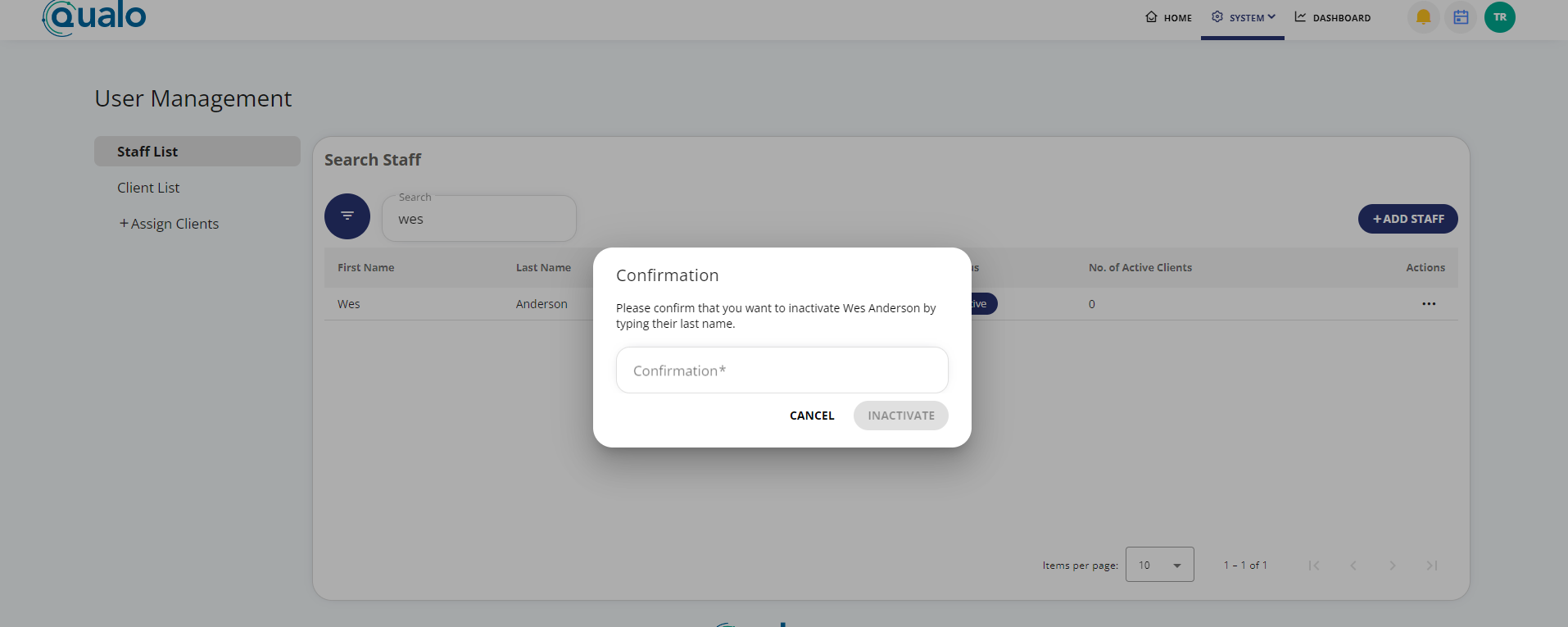
Screenshot shows the confirmation popup.
Click on Inactive to complete the process.
Optional
If the selected staff member has any active clients a pop up will appear
- Here you can assign existing clients under their caseload to the new staff member.
- Click on the Assign to option and a drop down of other staff members will appear.
- Choose the staff member you wish to assign the clients to and click the Assign & Save button at the bottom right of the pop up.
You now are able to inactive staff in QUALO. Please, proceed to: How to Edit/Update Staff Information
Related Articles
How to Delete Staff
As an Organization Admin, you will have the ability to delete staff members due to them no longer being needed in the QUALO system. Once the staff member is deleted, they will no longer be able to be accessed in QUALO. Optional: If staff member whom ...Using the Staff Listing Page to Manage Staff
Adding New Staff and Checking for Inactive Staff
Adding a Staff Person (Roles, Aspects and Assignments)
Transferring Clients
How to Bulk Transfer Clients